

Authorization
Create Google Cloud Project
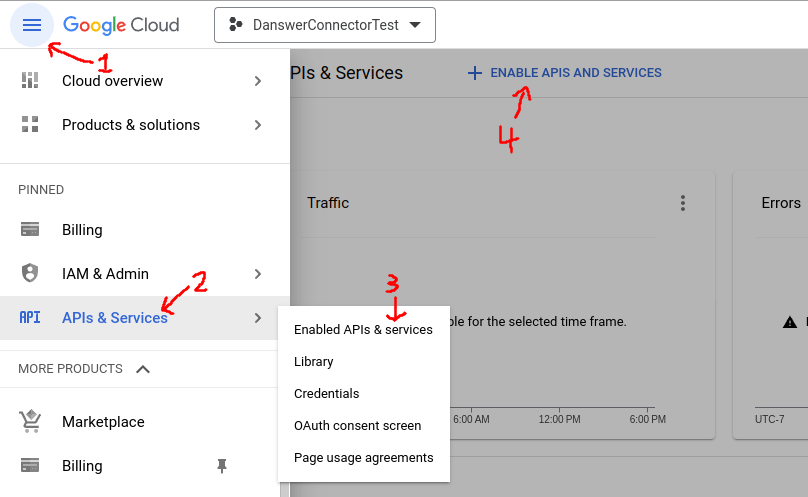
Enable Gmail API and Admin SDK
- On the left panel, open APIs & services
- Go to Enabled APIs and services
- On the top click +ENABLE APIS AND SERVICES
- Search for Gmail API and click ENABLE
- Alternatively visit this link, select your project and enable the Gmail API
- Also enable Admin SDK API (search and enable)
Create Service Account
- Go to the Service Account management page in Google Cloud.
- Click
Create Service Accountbutton and fill out the fields in step 1. You can ignore steps 2 and 3. - Go to the
Keyssection, and clickAdd Key. Download this key. You will provide it when creating the credential in Onyx later.
- To give the service account the proper permissions you will have to navigate to this link
- Then select
Manage, selectOverride parent's policyand then selectNot enforcedunderRules. - Finally, select
SET POLICY
Grant domain-wide delegation
Give this Service Account read-only access to Gmail
- Copy the
Unique IDof the Service Account - Go to the Domain-wide Delegation page in the Google Admin Console.
- Click
Add new, fill in the client ID with theUnique IDof the Service account - Copy this comma separated list of scopes and paste it into field
OAuth scopes:https://www.googleapis.com/auth/gmail.readonly,https://www.googleapis.com/auth/admin.directory.group.readonly,https://www.googleapis.com/auth/admin.directory.user.readonly
Indexing
First, navigate to the Admin Panel and select the Gmail connector. Then, create a new credential. In the Authenticate with Onyx step, upload the service account key you downloaded when creating the service account. Each credential holds its own service account key, so the key is provided here rather than as a single instance-wide upload. For the Primary Admin Email, use the email of a user that has an Admin role in the Google Workspace with access to the Users > Read and **Groups
Read** privileges. This can either be an existing admin, or a brand new account created specifically for Onyx (e.g.
onyx-robot@your-domain.com). Note that this should NOT be the service account email.
This can be configured by an admin in the admin panel of the Google Workspace under Account > Admin roles.
Click Create Credential, and then close the dialog. From there,
click the Continue button and configure the connector!
You can create more than one Gmail credential on a single Onyx instance, each with its own service account.
This lets you index multiple Google Workspaces from one Onyx deployment.
Create a separate credential and connector for each workspace you want to index.