> ## Documentation Index
> Fetch the complete documentation index at: https://docs.okeanai.ru/llms.txt
> Use this file to discover all available pages before exploring further.
# Google Sites
> Access sites and pages from Google Sites
## How it works
Export your Google Site using [Google Takeout](https://takeout.google.com/), and then upload the zip to Onyx.
We'll then index all your pages, and allow you to ask questions based on the site's content!
## Setting up
### Exporting Your Google Site
Follow the guide [here](https://www.steegle.com/google-sites/how-to/export-with-takeout) to export your Google Site.
Be sure to include ONLY the Google Site in the folder.
### Indexing
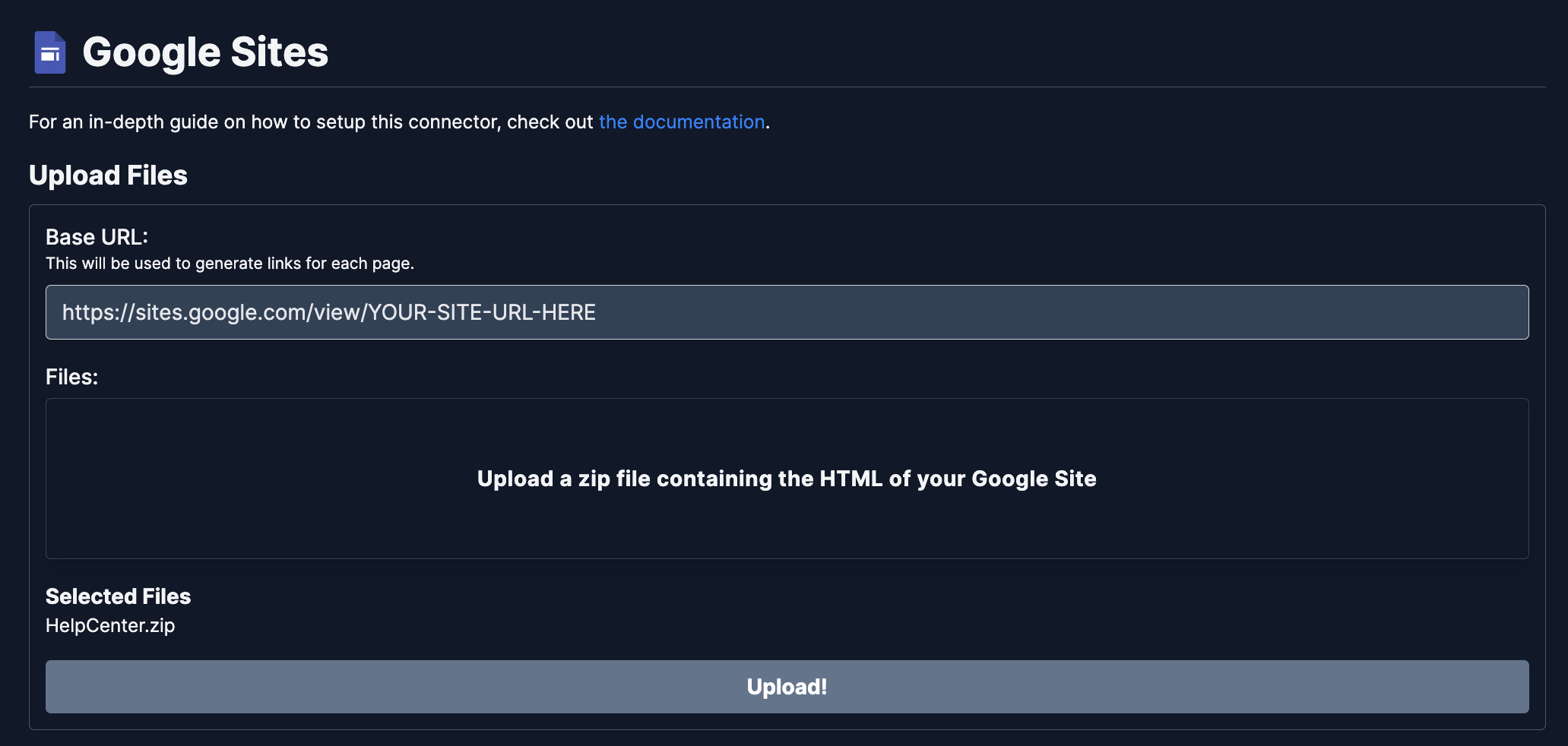
Navigate to the Admin Panel and select the **Google Sites** Connector.
Find and enter the base URL of your Google Site. This is the URL used to access the root page of the site.
Upload the Zip file downloaded in the export step.
Click the **Upload** button. Your site will be indexed and searchable upon completion.