> ## Documentation Index
> Fetch the complete documentation index at: https://docs.okeanai.ru/llms.txt
> Use this file to discover all available pages before exploring further.
# Google Drive OAuth
> Set up Google Drive OAuth for the connector
This section walks through setting up the Google Drive connector using a OAuth-enabled Google App.
Anyone can do this (even without a paid Google Workspace)!
If you're an organization with a Google Workspace, and you'd rather use a Service Account to access Google Drive,
checkout the section [here](./service_account).
### Authorization
* [https://console.cloud.google.com/projectcreate](https://console.cloud.google.com/projectcreate)
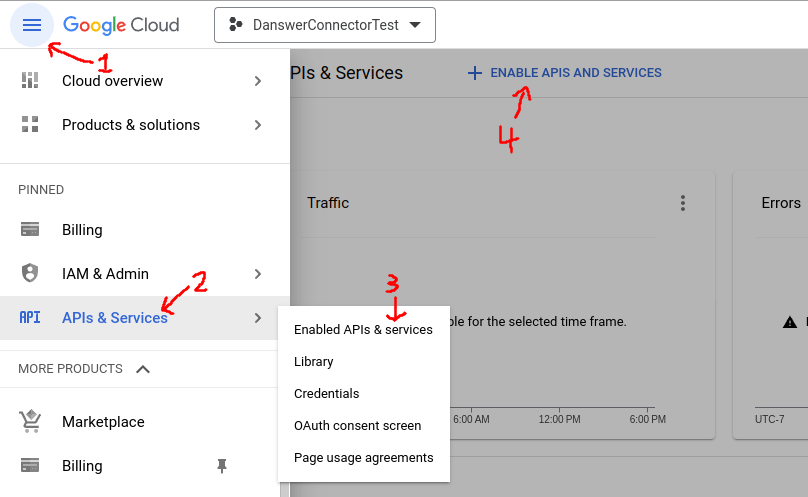
* On the left panel, open **APIs & services**
* Go to **Enabled APIs and services**
* On the top click **+ENABLE APIS AND SERVICES**
* Search for **Google Drive API** and click **ENABLE**
* Alternatively visit this [link](https://console.cloud.google.com/flows/enableapi?apiid=drive.googleapis.com),
select your project and enable the **Google Drive API**
* Click on **+ENABLE APIS AND SERVICES** again.
* Search for **Admin SDK API** and click **ENABLE**
* Alternatively visit this [link](https://console.cloud.google.com/flows/enableapi?apiid=admin.googleapis.com),
select your project and enable the **Admin SDK API**
* Click on **+ENABLE APIS AND SERVICES** again.
* Search for **Google Sheets API** and click **ENABLE**
* Alternatively visit this [link](https://console.cloud.google.com/flows/enableapi?apiid=sheets.googleapis.com),
select your project and enable the **Google Sheets API**
* Click on **+ENABLE APIS AND SERVICES** again.
* Search for **Google Docs API** and click **ENABLE**
* Alternatively visit this [link](https://console.cloud.google.com/flows/enableapi?apiid=docs.googleapis.com),
select your project and enable the **Google Docs API**
 * Under **APIs & services**, select the **OAuth consent screen** tab
* If you don't have a **Google Organization** select **External** for **User Type**
* Call the app Onyx (or whatever you want)
* For the required emails, use any email of your choice or `founders@onyx.app`
if you wish for the Onyx team to help handle issues.
* Click **SAVE AND CONTINUE**
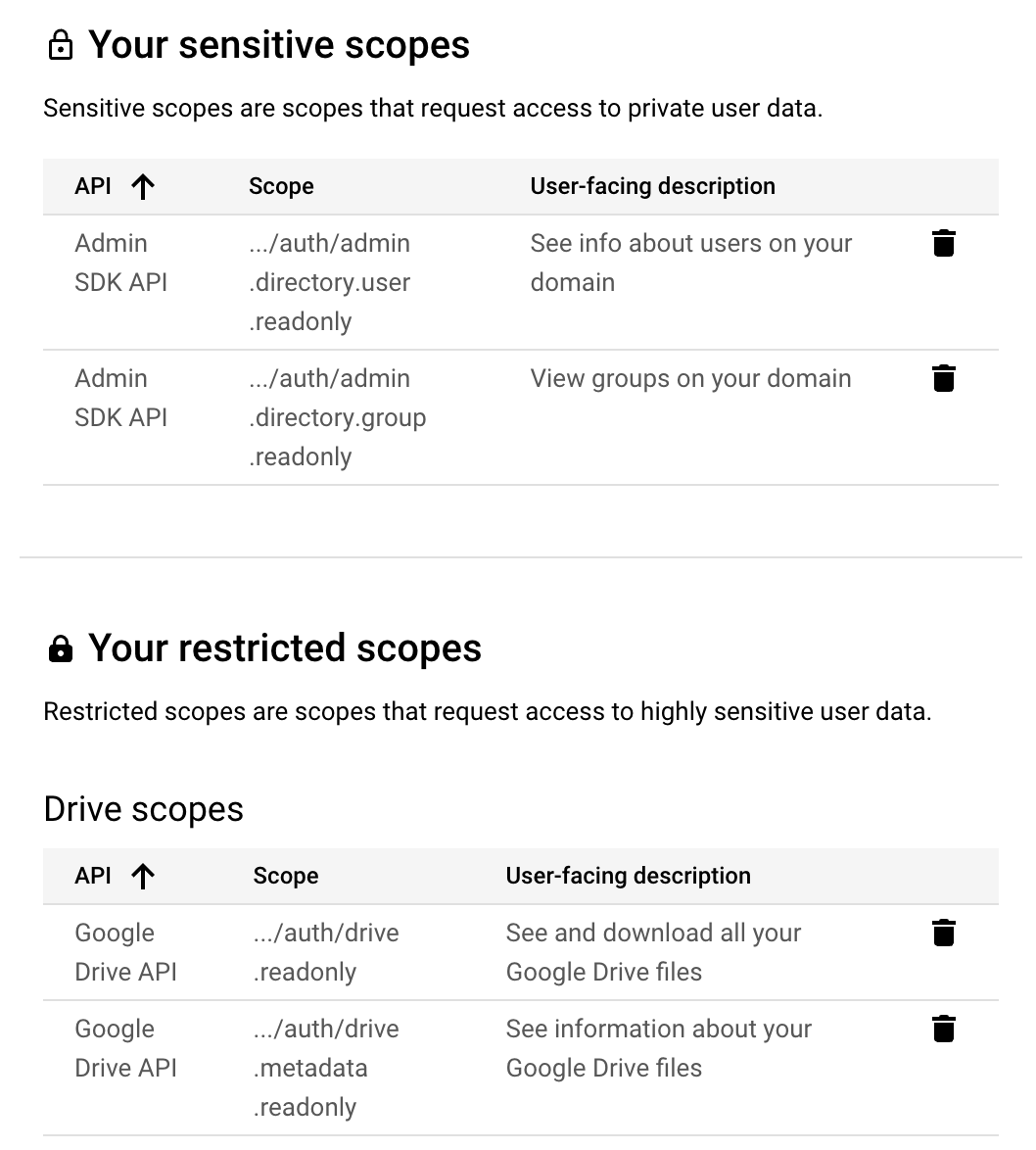
* Add the scope `.../auth/drive.readonly` for `Google Drive API`
* Add the scope `.../auth/drive.metadata.readonly` for `Google Drive API`
* Add the scope `.../auth/admin.directory.user.readonly` for `Admin SDK API`
* Add the scope `.../auth/admin.directory.group.readonly` for `Admin SDK API`
* Under **APIs & services**, select the **OAuth consent screen** tab
* If you don't have a **Google Organization** select **External** for **User Type**
* Call the app Onyx (or whatever you want)
* For the required emails, use any email of your choice or `founders@onyx.app`
if you wish for the Onyx team to help handle issues.
* Click **SAVE AND CONTINUE**
* Add the scope `.../auth/drive.readonly` for `Google Drive API`
* Add the scope `.../auth/drive.metadata.readonly` for `Google Drive API`
* Add the scope `.../auth/admin.directory.user.readonly` for `Admin SDK API`
* Add the scope `.../auth/admin.directory.group.readonly` for `Admin SDK API`
 * This is only applicable for users without a Google Organization.
* Typically for a company, Onyx would be set up as an internal app so this step would
not apply.
* Add at least one test user email. Only the email accounts added here will be allowed to
run the OAuth flow to index new documents.
* Click **SAVE AND CONTINUE**, review the changes and click **BACK TO DASHBOARD**
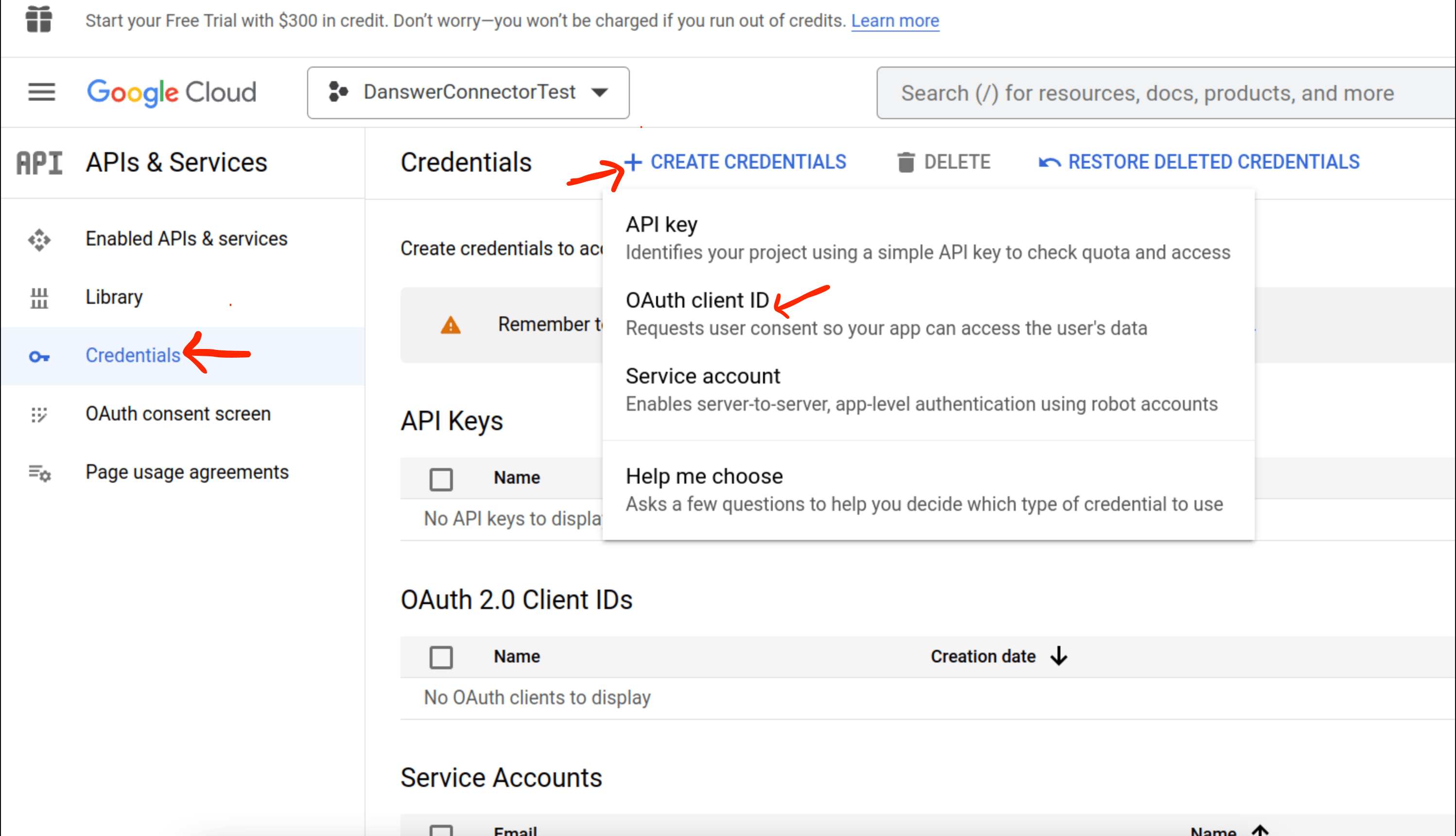
* Go to the **Credentials** tab and select **+ CREATE CREDENTIALS** -> **OAuth client ID**
* This is only applicable for users without a Google Organization.
* Typically for a company, Onyx would be set up as an internal app so this step would
not apply.
* Add at least one test user email. Only the email accounts added here will be allowed to
run the OAuth flow to index new documents.
* Click **SAVE AND CONTINUE**, review the changes and click **BACK TO DASHBOARD**
* Go to the **Credentials** tab and select **+ CREATE CREDENTIALS** -> **OAuth client ID**
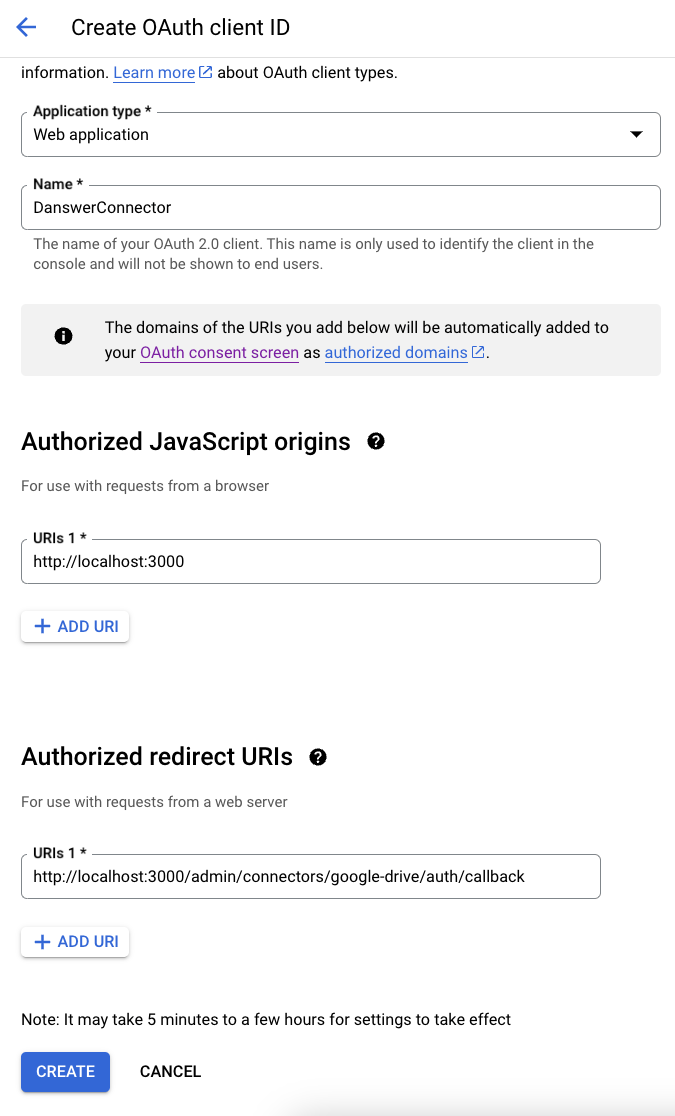
 * Choose **Web application** and give it some name like `OnyxConnector`
* Add a **Authorized JavaScript origins**
* `http://localhost:3000` if self-hosting
* `https://` if you have setup Onyx for production use
* `https://cloud.onyx.app` if you are using the Onyx Cloud service
* Add a **Authorized redirect URIs**
* `http://localhost:3000/admin/connectors/google-drive/auth/callback` if self-hosting
* `https:///admin/connectors/google-drive/auth/callback` if you have setup Onyx for production use
* `https://cloud.onyx.app/admin/connectors/google-drive/auth/callback` if you are using the Onyx Cloud service
* Choose **Web application** and give it some name like `OnyxConnector`
* Add a **Authorized JavaScript origins**
* `http://localhost:3000` if self-hosting
* `https://` if you have setup Onyx for production use
* `https://cloud.onyx.app` if you are using the Onyx Cloud service
* Add a **Authorized redirect URIs**
* `http://localhost:3000/admin/connectors/google-drive/auth/callback` if self-hosting
* `https:///admin/connectors/google-drive/auth/callback` if you have setup Onyx for production use
* `https://cloud.onyx.app/admin/connectors/google-drive/auth/callback` if you are using the Onyx Cloud service
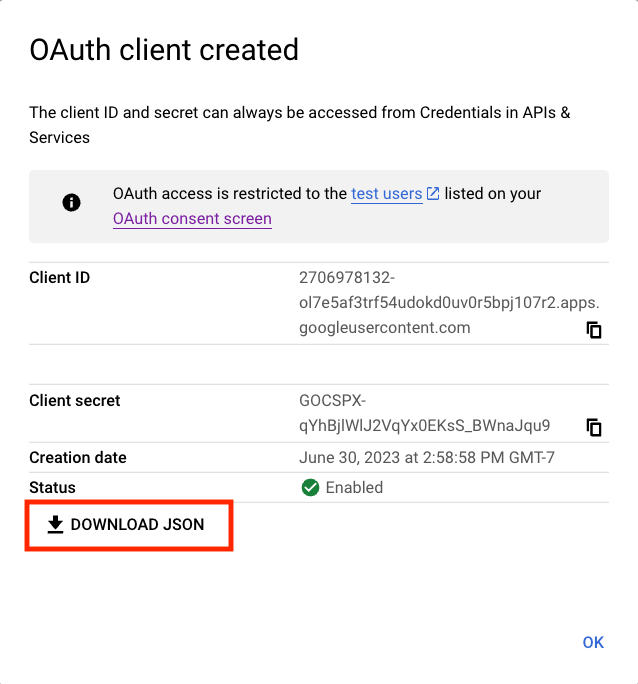
 * Click create and on the right hand side next to **Client secret**, there is an option to
download the credentials as a JSON. Download the JSON for use in the next step.
* Click create and on the right hand side next to **Client secret**, there is an option to
download the credentials as a JSON. Download the JSON for use in the next step.
 ### Indexing
First, navigate to the Admin Panel and select the Google Drive connector.
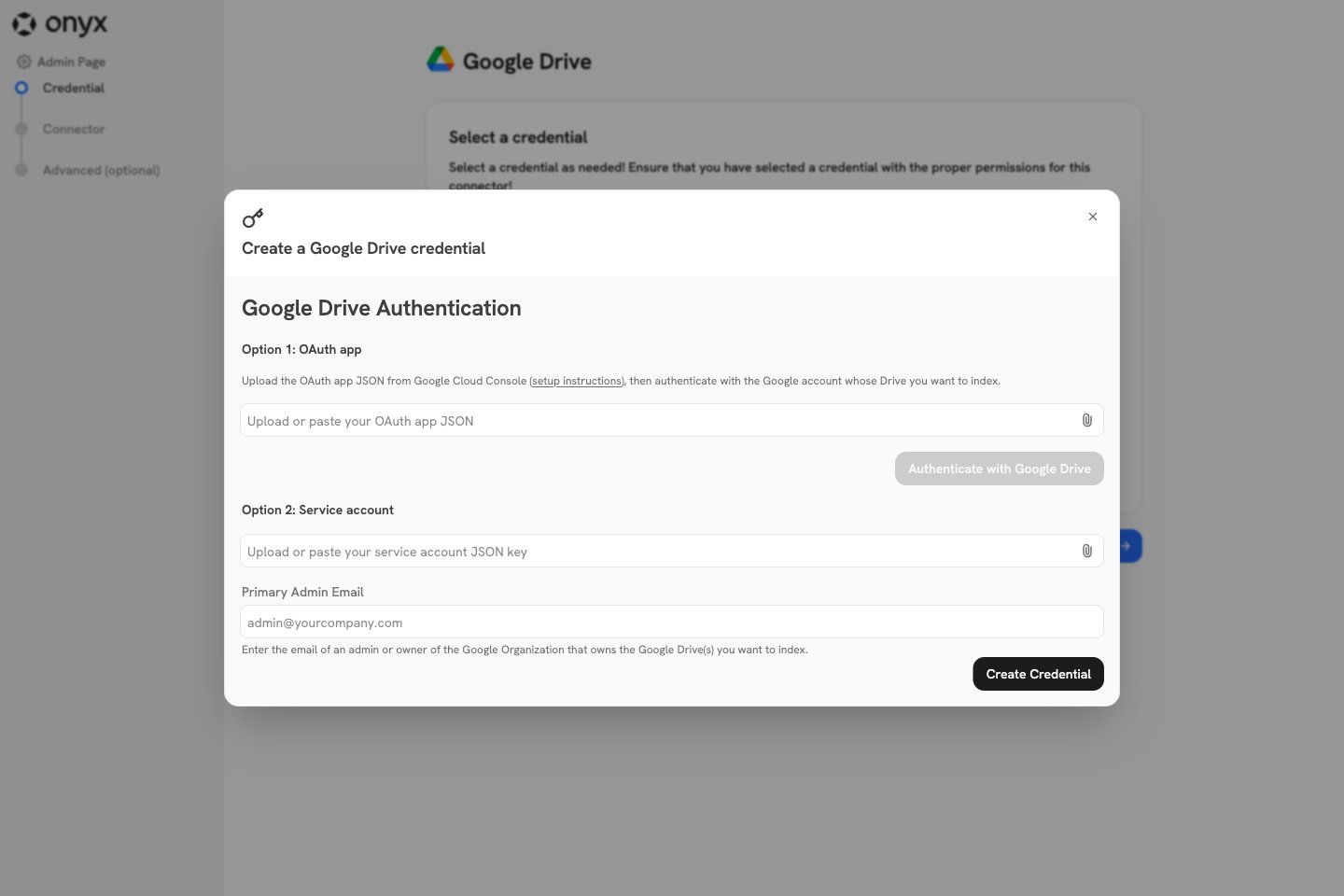
Then, click **Create New**. Under **Option 1: OAuth app**, upload (or paste)
the OAuth app JSON you downloaded in the final step above,
then click **Authenticate with Google Drive** and continue with the account you want to use to index Google Drive.
### Indexing
First, navigate to the Admin Panel and select the Google Drive connector.
Then, click **Create New**. Under **Option 1: OAuth app**, upload (or paste)
the OAuth app JSON you downloaded in the final step above,
then click **Authenticate with Google Drive** and continue with the account you want to use to index Google Drive.
 Once complete, select the newly created credential, and click the **Continue** button to configure the connector!
The app JSON is stored on the credential it creates, so each OAuth credential carries its own app.
To add more connectors for the same account,
select the existing credential from the list instead of creating a new one.
An instance can hold multiple Google Drive credentials,
including ones using different OAuth apps or different Google Workspaces.
If you plan on using permission syncing for this connector,
the account performing the OAuth flow must have an Admin role in the Google Workspace that has access to the
following:
* Admin console privileges -> Services -> Drive and Docs -> Settings
* Admin API privileges -> Users -> Read
* Admin API privileges -> Groups -> Read
* Admin API privileges -> Organization Units -> Read
This can be set by an admin in the admin panel of the Google Workspace under Account > Admin roles.
Once complete, select the newly created credential, and click the **Continue** button to configure the connector!
The app JSON is stored on the credential it creates, so each OAuth credential carries its own app.
To add more connectors for the same account,
select the existing credential from the list instead of creating a new one.
An instance can hold multiple Google Drive credentials,
including ones using different OAuth apps or different Google Workspaces.
If you plan on using permission syncing for this connector,
the account performing the OAuth flow must have an Admin role in the Google Workspace that has access to the
following:
* Admin console privileges -> Services -> Drive and Docs -> Settings
* Admin API privileges -> Users -> Read
* Admin API privileges -> Groups -> Read
* Admin API privileges -> Organization Units -> Read
This can be set by an admin in the admin panel of the Google Workspace under Account > Admin roles.